Connecting other systems (API v1)
API v1 lets another system talk to NEXT HMI over HTTP: a MES that reads recipes, a BI tool that pulls historian data or alarm history, an HR system that keeps the operator accounts up to date, a badge reader that signs an operator in on a panel. It is a small, versioned API: the routes and field names on this page stay the same for as long as v1 exists.
Every request names one project, by its id. The API works the same whether that project is running or stopped, because it reads and writes the project's own files. The one exception is signing someone in or out on a panel, which needs the project running. Nothing in it writes to the PLC.
API v1 is the only way in meant for other systems. The other addresses the app uses are its own internals and can change in any release. What the operator screens leave open without any credential is listed in What is reachable without a password.
Giving a system access
There are two ways to sign a request.
An API token (recommended). A token is a long random string that unlocks every project on this installation, but only the parts you tick when you create it. Hand each system its own token, so you can take one back without touching the others.
- On the Manager dashboard, open Settings.
- In the Tokens section, click Create token and choose the kind API.
- Give it a name you will recognise later (HR system, Power BI).
- Tick the scopes the system needs, and nothing more (see the table below).
- Click Create token, then copy the token. It is shown once: only a hash of it is stored, so a lost token cannot be recovered, only replaced.
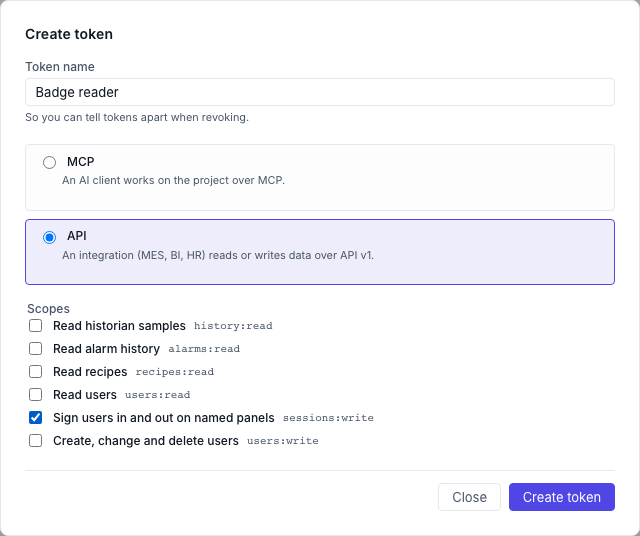
The dialog also shows a ready-made curl command for the new token; replace
<project-id> in it with a project's id. The Tokens section lists every
token, with Revoke on each.
The device-admin password. The password that unlocks the dashboard also
works, over HTTP Basic, with the username admin. It reaches every project and
every scope, so keep it for your own scripts and testing. After five wrong
passwords from one address, the API and the dashboard sign-in lock for that
address for a minute (429, with a Retry-After header); other machines are
not affected. A correct password over the API does not wipe that count; a
correct one entered anywhere else from the same address (the dashboard sign-in,
a password change, pairing an MCP client or another machine), or the lock
itself, starts it again.
A username and password from the project's Users list never works here. Neither does an MCP token: those are for AI agents (see AI agents over MCP).
Scopes
| Scope | Lets the system |
|---|---|
history:read |
Read historian samples |
alarms:read |
Read the alarm history, including who acknowledged each alarm |
recipes:read |
Read the recipe types and their saved datasets |
users:read |
Read the user list (never a password) |
users:write |
Create, change and delete users |
sessions:write |
See which named panels are open, and sign users in and out on them |
users:write does not include users:read. A token with only
users:write can create, change and delete users, but gets 403 when it asks
for the user list. A system that both reads and updates users, such as an HR
sync, needs both scopes ticked.
Making a request
All addresses start with the dashboard's own address, then
/api/v1/projects/<project id>/. The project id is the name in the project's
URLs (/runtime/<id>/).
Send the token in the Authorization header:
curl -H "Authorization: Bearer $TOKEN" \
  "https://hmi.local:8443/api/v1/projects/line-a/recipes"
Or the device-admin password, with -u:
curl -u "admin:$DEVICE_ADMIN_PASSWORD" \
  "https://hmi.local:8443/api/v1/projects/line-a/recipes"
What the answers mean:
| Status | Meaning |
|---|---|
200 |
Done |
401 |
No credential, a wrong one, or a revoked token |
403 |
The token lacks the scope this route needs |
401 (panel sign-in) |
The HMI user's username or password is wrong |
404 |
No such project, no such user, or no open panel with that name |
409 |
The project's users.json is damaged (repair it in the editor first), or a panel route was called while the project is stopped |
422 |
Something in the request is not valid; the detail field says what |
429 |
Too many wrong passwords; wait a minute |
Times
Wherever a request takes a time, write it as ISO-8601 (2026-11-03T08:00:00,
UTC when no offset is given), as now, or relative to now: -30s, -15m,
-1h, -7d. Every time in an answer is ISO-8601 in UTC, with its offset.
Long lists come in pages
Historian samples and alarm history come in pages. An answer looks like this:
{ "items": [ ... ], "nextCursor": "eyJrIjoi..." }
To get the next page, repeat the same request with &cursor=<nextCursor>. When
nextCursor is null you have everything that request asked for.
A cursor only walks one request's results; it is not a bookmark to come back to
later. To keep another system up to date, poll with start instead:
- Historian samples reach the database in batches, a second or two after
they were measured. Set
starta minute before the newesttimestampyou already have, and drop the rows you already have (samevariableandtimestamp). - Alarm history: set
startto the newestclearedAtyou already have, and drop the alarms whoseidyou already have.
Add &format=csv to get the page as a CSV file instead, ready for a
spreadsheet. The next cursor then comes in the X-Next-Cursor response header,
which is missing on the last page. A text that starts with =, +, - or @
gets a ' in front, so the spreadsheet shows it instead of running it as a
formula.
What you can read and change
Historian samples
curl -H "Authorization: Bearer $TOKEN" \
  "https://hmi.local:8443/api/v1/projects/line-a/history?variables=LinePLC:Tank/Level,LinePLC:Tank/Temp&start=-1h"
variables names one or more recorded variables, separated by commas, as
<datasource>:<path> — the same keys the historian records. start is required; end is now
unless you give one. You get every recorded sample in that window, oldest first,
never thinned out: { "variable", "timestamp", "value" }. A page holds up to
1000 samples unless you set limit, which goes up to 10000.
Alarm history
curl -H "Authorization: Bearer $TOKEN" \
  "https://hmi.local:8443/api/v1/projects/line-a/alarms/history?start=-7d&format=csv"
Each cleared alarm, oldest first by when it cleared, with its code, level,
title, when it came and went, and whether, when and by whom it was acknowledged
(acked, ackedAt, ackedBy). start and end select on the moment an
alarm cleared. An alarm that is still active is not in the history yet. The project keeps
the newest 500 cleared alarms. A page holds up to 100 unless you set limit,
which goes up to 500.
Recipes
curl -H "Authorization: Bearer $TOKEN" \
  "https://hmi.local:8443/api/v1/projects/line-a/recipes"
Every recipe type with its parameters and saved datasets, and which dataset was loaded last. Reading recipes never loads one to the machine.
Users
List the users and the groups they can be in:
curl -H "Authorization: Bearer $TOKEN" \
  "https://hmi.local:8443/api/v1/projects/line-a/users"
Each user comes back as { "id", "username", "groups", "passwordSet" }.
Create a user, or change one, with PUT and the user's id in the address:
curl -X PUT -H "Authorization: Bearer $TOKEN" -H "Content-Type: application/json" \
  -d '{"username": "jdoe", "password": "a-long-password", "groups": ["operator"]}' \
  "https://hmi.local:8443/api/v1/projects/line-a/users/jdoe"
Send only what changes: a field you leave out keeps its current value, and
leaving out the password keeps the current password. A new user without a
password cannot sign in. The same rules as in the editor apply: ids and
usernames use letters, digits, - and _; every user needs at least one group
that exists; two users cannot share a username; and guest stays a password-less
member of the guest group only.
Remove a user:
curl -X DELETE -H "Authorization: Bearer $TOKEN" \
  "https://hmi.local:8443/api/v1/projects/line-a/users/jdoe"
The guest user cannot be removed.
Every user created, changed or removed over the API is recorded in the audit
trail when the build has one, under the token's name (or admin), marked as
coming from the API. The record says whether the password changed, never the
password itself.
A change takes effect at once: the next sign-in on a panel uses the new list. On a running project, a removed user, or one whose password changed, is signed out of every panel straight away (the panel falls back to its auto-login user), and a user whose groups changed gets the new groups on the panel they are signed in on. If someone has the project open in the editor, the editor shows the new list, or, when it has unsaved changes, that another writer changed it, so they reload before saving.
Panels: sign users in and out
A badge reader at a machine, or a MES at shift change, can sign an operator in on a panel without anyone typing a password on the screen. The API checks the operator's own password, the same one they would type at the panel.
Name the panel first. Open the panel's runtime with a panel parameter in
the address:
https://hmi.local:8443/runtime/line-a/?panel=line-a-1
A panel name uses letters, digits, - and _, up to 64 characters. Several
screens can share one name (two monitors at the same machine); they are signed
in and out together. A screen opened without the parameter has no name and the
API cannot reach it. The name is kept when the operator moves between pages and
when the browser reloads; it is gone when the tab is closed. Set it in the panel
PC's kiosk or start-up address so it is always there.
See which named panels are open, and who is signed in on each:
curl -H "Authorization: Bearer $TOKEN" \
  "https://hmi.local:8443/api/v1/projects/line-a/panels"
{ "panels": [ { "name": "line-a-1", "connections": 1, "users": ["guest"] } ] }
Sign a user in, with their username and password from the project's Users list:
curl -X POST -H "Authorization: Bearer $TOKEN" -H "Content-Type: application/json" \
  -d '{"username": "jdoe", "password": "their-password"}' \
  "https://hmi.local:8443/api/v1/projects/line-a/panels/line-a-1/login"
The answer is { "panel", "username", "groups" }, and every open screen with
that name switches to that user at once, as if they had signed in there. A
wrong username or password answers 401. Five wrong passwords in a row for one
username lock that username for a minute (429), on the panel itself as well:
it is the same lock a sign-in on the screen uses.
Sign out again:
curl -X POST -H "Authorization: Bearer $TOKEN" \
  "https://hmi.local:8443/api/v1/projects/line-a/panels/line-a-1/logout"
The panel falls back to the project's auto-login user (guest unless you chose
another one). The answer names who was signed in: { "panel", "signedOut" }.
These routes act on the screens that are open now, so the project must be
running (409 otherwise), and a name with no open screen answers 404. A
signed-in screen that reloads stays signed in; a screen that opens later with
the same name starts as the auto-login user. A build that keeps a record of
who did what records every sign-in and sign-out over the API under the token's
name (or admin), with the user who was signed in or out.
Keeping it safe
- Turn on HTTPS (see HTTPS) before any system uses the API across a network. Over plain HTTP the token or password travels as readable text, and anyone on the network path can copy it. The API does not refuse plain HTTP, because many machines run on a closed LAN, but treat a token that has crossed an untrusted network that way as leaked.
- One token per system, with the fewest scopes it needs. A BI tool needs
history:read, notusers:write. - Store a token like a password: in the other system's secret store, not in a script in a shared folder or in a ticket.
- Revoke what you no longer use. Tokens do not expire on their own. Revoke one from the Tokens list; changing the device-admin password revokes every token at once, MCP and API alike.
- A token with
users:writecan make anyone an operator or an admin. Give it only to a system you trust with that. - A token with
sessions:writestill needs each operator's password to sign them in, but it can sign anyone out of a panel at any time. - A panel name proves nothing. Anyone who can reach the runtime can open it
with
?panel=<name>and then receives every sign-in sent to that panel, with a login that survives a reload. Only sign users in over the API on panels that sit on a trusted network, in a kiosk browser nobody else controls. See What is reachable without a password.