Users, groups & permissions
Who is at the panel decides what they see and what they may change. NEXT HMI answers that with groups — a user belongs to one or more, and everything else (a hidden button, a read-only setpoint, a refused write) is a group test. There is no scripting anywhere in this.
The model in four sentences
- A group is a label with an id —
guest,operator,engineer,adminship by default. Add your own freely. - A user is a username, a password, and at least one group.
guestis the built-in anonymous identity: it always exists, always belongs only to theguestgroup, and can never be given a password. It is who you are before signing in.- Every screen decides for itself what a given group may see or touch, using the
$userGroupssource on the widget's Visible and Interactable fields.
All of it lives in users.json inside the project folder, with passwords stored hashed — never in plain text, and never sent back to the browser.
Add users and groups
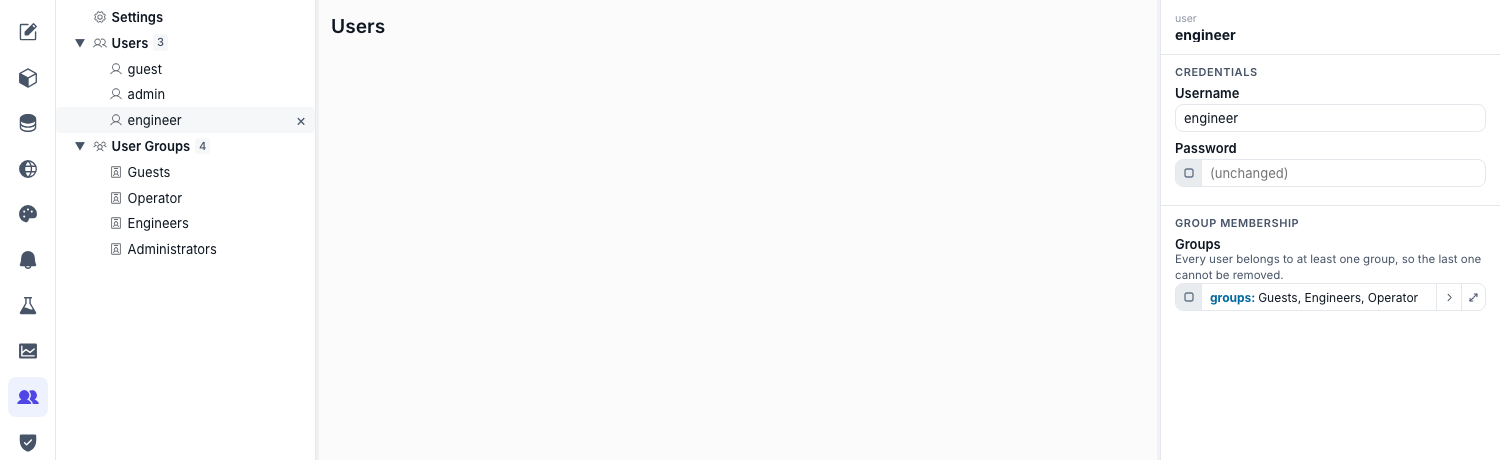
- Open the Users area — Pick Users in the editor's left rail. The tree lists Settings, then your groups, then your users.
- Add a group — Give it a Label; the id is fixed at creation and is what bindings refer to. Keep ids short and stable (
maintenance,shift-lead) — renaming the label is free, the id is not. - Add a user — Set the Username, a Password, and tick the Groups they belong to. A user must keep at least one group, so the last one cannot be removed.
- Save users — Accounts save on their own Save users button in the header, separate from the normal Save, so a security change is never carried along by an unrelated page edit. Discard users throws the draft away.
The password field never shows you the current password. It reads (unchanged) once one is set — the server only stores a hash. Type a new one to replace it; leave it alone and the existing one is kept.
A user with no password set cannot sign in at all. Nobody can log in as that account — not with a blank password, not with any password — until you give it one. It still works as the auto-login user, which is how guest (an account that can never have a password) is the identity a panel starts out as. So a half-finished account is never a way in.
Repeated wrong passwords lock that username out for a minute. Five in a row and even the right password is refused until the minute is up; the operator sees the login action fail with rate_limited rather than invalid_credentials. Other users are unaffected. A live view is reachable by anyone who can reach the panel, so this is what stands between it and someone guessing at an account all afternoon.
Settings: auto-login
Select Settings in the tree for the one project-wide choice:
| Setting | Means |
|---|---|
| Auto-login user | Who a freshly opened runtime is signed in as before anyone touches it. guest is the normal answer; picking a real user makes an unattended panel start out with that user's rights. |
No group opens the editor. The fence around the project itself is the installation's device-admin password — the one that unlocks the Manager dashboard — and nothing in users.json widens or narrows it. Whoever has that password can rewrite pages, alarms and users, whichever project user the runtime happens to be signed in as, so keep it to the people who genuinely engineer the system. See How this relates to the device-admin password.
Sign in and out on a screen
The User Badge widget is the ready-made way in. Drop it in the header and it shows who is signed in — an initialled avatar, the username, and their groups — and carries the sign-in and sign-out affordances with it.
It reads the session itself, so there is nothing to bind for the common case:
| While signed in as | The badge shows |
|---|---|
guest |
A Log in button — your Sign-in label, with a sign-in icon. |
| A real user | The avatar, username and groups, plus a sign-out icon button. |
Each half appears only once you give it something to run, which is what keeps the badge usable on a panel that never signs anyone out:
- On Sign In — the actions the Log in button runs. Usually a single Open Dialog pointing at your sign-in dialog.
- On Sign Out — the actions the sign-out button runs. Usually just Logout User.
- On Press — optional, makes the identity itself pressable, for a profile or shift-handover dialog.
Appearance carries Show groups, your own Sign-in icon and Sign-out icon, and a Radius if the theme's fully-round default doesn't suit the header. Username text and Groups text override what it displays, for the rare screen that should name someone other than the session user.
The NEXT BREW example template wires exactly this — the badge in the header,
opening a login dialog for guests and calling logoutUser for everyone else.
Building the dialog itself. The sign-in dialog behind the badge is layout like any other screen, wired with actions (Actions):
- Log in — a Login User action whose Username and Password are bound to wherever the operator typed them (a Dropdown's or String Input's
$widgetProp, a component input, a$staticfor a fixed kiosk account). A Dropdown whose Options come from$user→ All users offers every account by name and hands over the username, which is what Login User takes — the NEXT BREW sign-in dialog does exactly this. It runs asynchronously: useonFailedto show a toast on a wrong password,onSuccessto close the dialog. - Log out — a Logout User action drops the session back to the auto-login user.
Tick Password field on the String Input holding the password so the entry is masked. It deliberately keeps browser keychains out, so a panel PC never offers to save — or auto-fill — an operator's credentials.
Sign-in is per open runtime, not per browser and not per installation: two tabs on the same panel PC can be two different operators, and each keeps its own identity until it is closed or logged out.
Global events give the rest of the plumbing — onUserLoggedIn and onUserLoggedOut fire project-wide, which is where "go to the home page on login, back to the lock screen on logout" belongs. See Global events.
Gate what a group can see and do
Every widget carries Visible and Interactable in its Visibility group. Both are plain booleans, so any source can drive them — but the one you want here is $userGroups, which is true when the signed-in user is in one of the groups you tick (an empty list means everyone).
Both already arrive on that source. A newly placed widget has Visible and Interactable wired to $userGroups with an empty group list, so gating one is ticking the groups — there is no source to switch first, and a widget you never touch stays visible and operable for everyone.
| Goal | Set |
|---|---|
| Hide a maintenance panel from operators | Visible → $userGroups → engineer, admin |
| Show a Start button to everyone but let only operators press it | Interactable → $userGroups → operator |
| Show different text per role | any String field → $if with a $userGroups condition |
What a locked widget does
A widget that is not Interactable renders read-only rather than disappearing — the operator can see the setpoint and see that it is not theirs to change. It is dimmed, and pressing it does nothing.
Whether the press says anything is a project-wide choice: the editor's Settings panel (see Layout & the shell) carries Locked feedback with three modes.
| Mode | On press |
|---|---|
| Marker at pointer (default) | A ⊘ marker flashes where the finger or cursor landed. |
| Notification | A warning toast reads Interaction not permitted, dismissible and self-clearing. Hammering the same widget re-uses the toast already on screen. |
| None | Nothing — the press is swallowed silently, and the widget carries no tooltip either. |
Pick Notification for a panel where a small flash is easy to miss, None where a locked control should read as plain decoration.
Two more sources read the identity directly, for labels and lists rather than gates: $user gives the signed-in username or their groups as text. On a list field — a Dropdown's Options, a Repeater's Items — it lists All users (each valued by username) or All user groups instead, the raw material for a user-picker screen.
Enforcement, and where it really happens
Hiding a button is presentation. The write itself is checked on the server: a datasource variable may carry an interactableByGroups list, and a write to it from a session outside those groups is refused with permission_denied — over the WebSocket and over REST alike. The editor has no field for it; set it on the variable entry in the datasource file (or via the datasource API) when a tag must be protected against more than a hidden button.
An empty list means everyone, not nobody. "interactableByGroups": [] reads the same as leaving the key out — the write is allowed. To lock a tag down, name the groups that may write it; there is no spelling that permits nobody at all. Note this reads the opposite way round to the group pickers elsewhere in the editor, where an empty selection means nobody.
It also has to sit on the variable entry. A list on a folder is silently ignored — the variables inside it stay writable.
Treat Visible / Interactable as ergonomics, not as security. They keep the wrong control out of the wrong hands on the panel; they do not stop someone who reaches the API. For tags that matter, set interactableByGroups on the variable as well, and keep the runtime off untrusted networks — see HTTPS.
How this relates to the device-admin password
Two separate credentials exist, and mixing them up is the usual confusion:
| Credential | Gates | Lives in |
|---|---|---|
| Device-admin password | The Manager dashboard — starting, stopping, importing, transferring projects — and the editor behind it. | The installation, not any project. |
| A project user's password | Signing in on this project's screens, and whatever that user's groups allow. | users.json in the project. |
Groups decide what a signed-in operator sees and may touch on the screens. They never decide who may edit the project — that is the device-admin password, full stop.
A running project's screens are open — no password at all. /runtime/<slug>/ is reachable by anyone who can reach the panel, which is what an HMI is for: an operator walks up and works. The device-admin password guards the editor and the dashboard, not the live view.
That means operating is open too — pressing a button, changing a setpoint, writing a tag. To restrict a tag to certain groups, set interactableByGroups on the variable (see Enforcement); it is the only thing that limits what an operator may write, and it is opt-in per variable. Keep the runtime off untrusted networks — see HTTPS.
A project copied from the seed ships no accounts at all beyond the anonymous guest, so there is no reusable credential to leak between installs and nothing to type before the project opens. Every real account is one you add here. See Managing projects.
If users.json goes bad
On startup an unreadable or structurally invalid users.json is backed up next to itself as users.json.bak.invalid.<timestamp> and replaced with the defaults — the anonymous guest and the four stock groups, no other account. You lose the accounts, not the project, and the original file is still there to read.